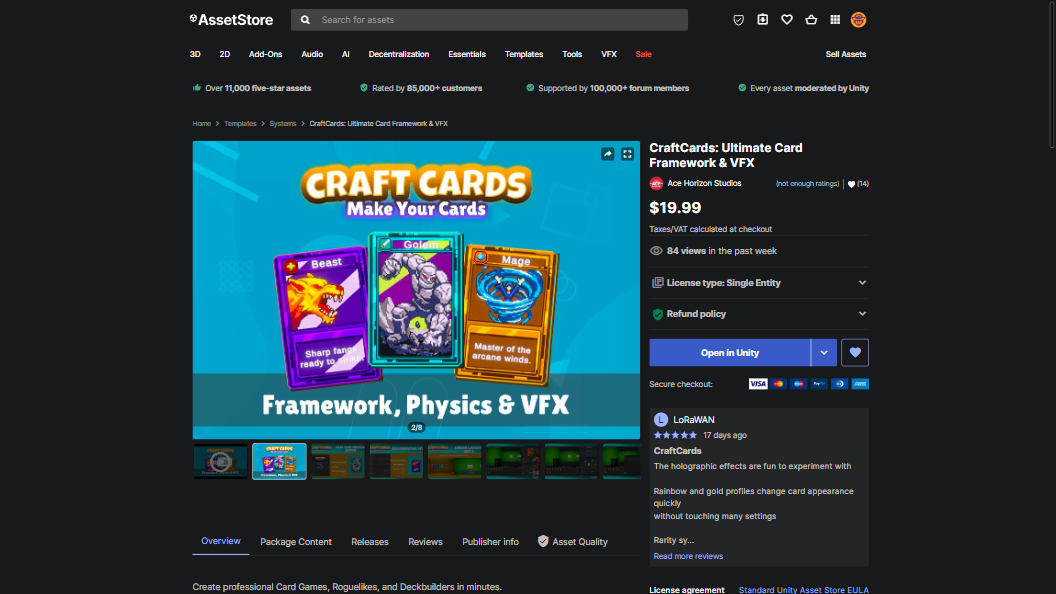
Building a card game in Unity from scratch means implementing drag-and-drop interactions, hand layouts, deck shuffling, discard piles, and card data management. That's weeks of work before you even get to the fun part — designing your actual game.
CraftCards gives you all of that out of the box. In this tutorial, I'll walk you through setting up a complete card system in under 30 minutes.
What You'll Build
By the end of this tutorial, you'll have:
- A deck of cards with custom data (name, image, stats, description)
- A hand display with smooth fan layout
- Drag-and-drop card interactions
- Draw and discard pile management
Step 1: Import CraftCards
After purchasing CraftCards from the Unity Asset Store, import it into your Unity project. The package includes everything you need — no external dependencies.
Open the sample scene at CraftCards/Samples/BasicDemo to see a working setup. We'll build our own from scratch.
Step 2: Create Your Card Data
CraftCards uses ScriptableObjects for card definitions. Right-click in your Project window:
Create → CraftCards → Card Definition
Fill in the fields: card name, description, artwork sprite, and any custom stats you need. Create at least 5-10 cards to have a meaningful deck.
Step 3: Set Up the Hand Layout
Add the HandLayoutManager component to a UI panel in your Canvas. Choose your layout type:
- Fan — cards spread in an arc (classic card game feel)
- Grid — cards in a grid layout (inventory-style)
- List — cards in a horizontal row
The fan layout works best for most card games. Adjust the arc angle and spacing until it feels right.
Step 4: Configure the Deck
Add the DeckManager component to your scene. Assign your card definitions to the deck. The DeckManager handles:
- Shuffling on game start
- Drawing cards to hand
- Moving cards to discard pile
- Reshuffling discard into deck when empty
Step 5: Enable Drag and Drop
CraftCards includes built-in drag-and-drop handling. Cards automatically become draggable when added to the hand. Define drop zones (play area, discard) by adding DropZone components to target UI elements.
Hook into the OnCardPlayed event to trigger your game logic when a card is dropped on a valid zone.
Next Steps
From here, you can:
- Add card effects and game rules
- Create enemy card systems
- Build a deck-building meta layer
- Add visual polish with animations and particles
CraftCards handles the UI and interaction infrastructure so you can focus on what makes your card game unique.
CraftCards was built from the systems I developed for Red Pistol. It's battle-tested in a real shipped game.